Products and prices
This is where you add what you sell: the products, their prices and categories, and what prints on the receipt and in the kitchen.
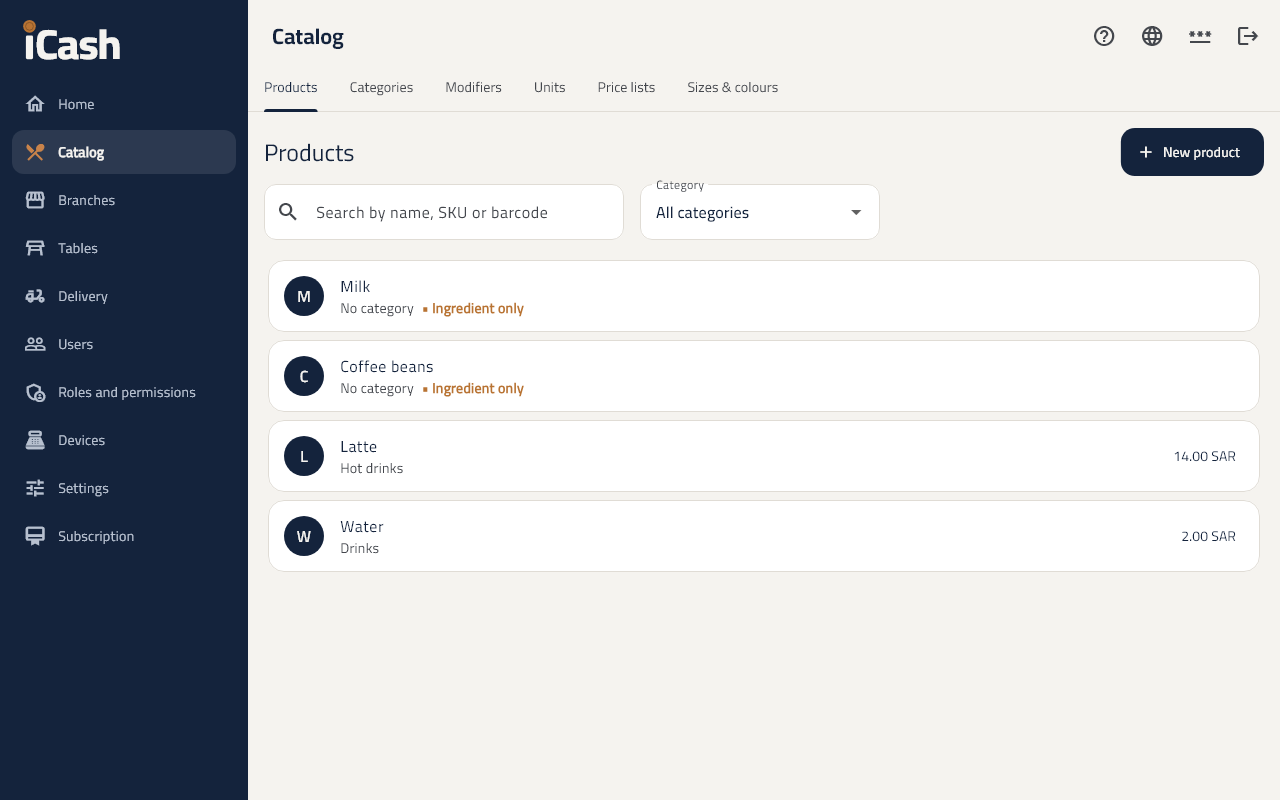
Add a product
- In the menu choose Catalog, then the Products tab.
- Tap New product.
- Type its name, choose its category and unit, and type its price.
- Add its barcode if it has one, then tap Save.
Products from a photo
- On the Products tab tap From a photo and choose a photo of a menu, a price list or a supplier's invoice.
- The AI reads it and lists the products with their prices and categories.
- Correct a name or a price, untick what you do not want, then tap Save products.
- Products you already have are shown but not saved again. Each photo uses 2 AI credits.
Categories
- Open the Categories tab and add a category (drinks, desserts...).
- Categories show on the selling screen to reach the products faster.
Modifiers and sizes
- In the Modifiers tab you add what is chosen with a product (sugar, extra milk) and its price.
- Sizes (small, medium, large) are added on the product's page, each with its own price.
Change a price
- Open the product from the list.
- Change the price and tap Save. The till gets the new price with its next sync.
The product's picture
- On the product's page tap Choose a picture; the app makes it small and it shows on the product's tile on the restaurant screen.
Which screen a category is on
- When editing a category choose Shown on: The restaurant screen, The shop screen or Both screens. A search or a barcode finds any product on either.
Print barcode labels
- On the product's page tap Print labels, type the number of copies, then print on the label printer.