Tables
With the Restaurant pack: the place is split into areas and tables, and each table keeps its orders until it pays.
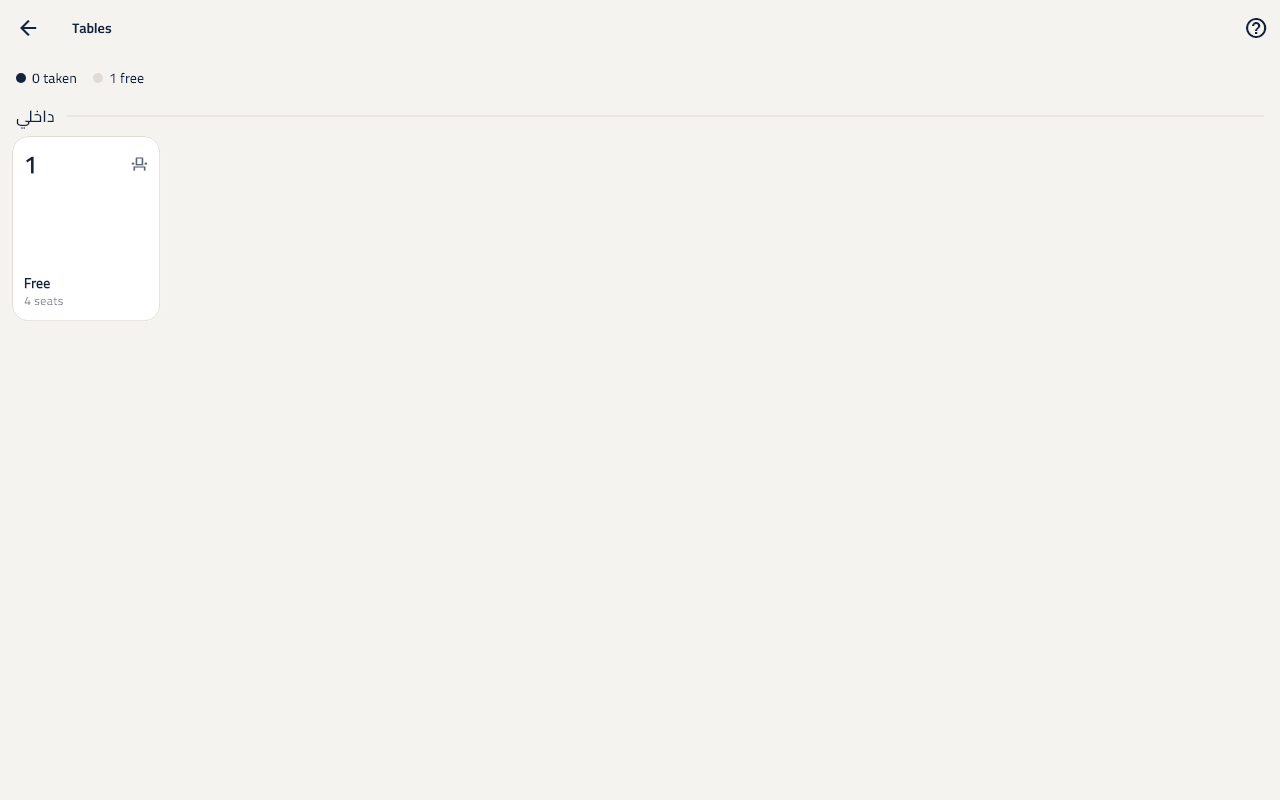
Set the tables up
- In the menu choose Tables and tap New area (inside, outside).
- Tap New table: the Table number or name and the Seats.
An order on a table from the till
- On the selling screen tap Tables and choose the table.
- Tap Add items, pick the items, then Send so they reach the kitchen.
- The table shows Table in use until it is paid.
Take the table's payment
- Open the table and tap Take payment; it goes to payment, and then the table is Free again.
Take off an item already sent
- Tap Take off on the item and choose the reason; what was made is recorded as waste.
The guest's name and moving a table
- In the table's menu (⋮) choose Guest's name; it shows on the table's tile, its kitchen tickets and the receipt.
- Choose Move to another table to move the whole order to a free table.
The customer left without paying
- In the table's menu (⋮) choose Void the table's order.
- If nothing was sent to be made, the table is freed at once.
- If items were sent, it is voided at a till: choose the reason, a manager approves, and say what was made.