The selling screen
This is where you sell: pick the items, the customer pays and the receipt prints. You need an open shift to sell.
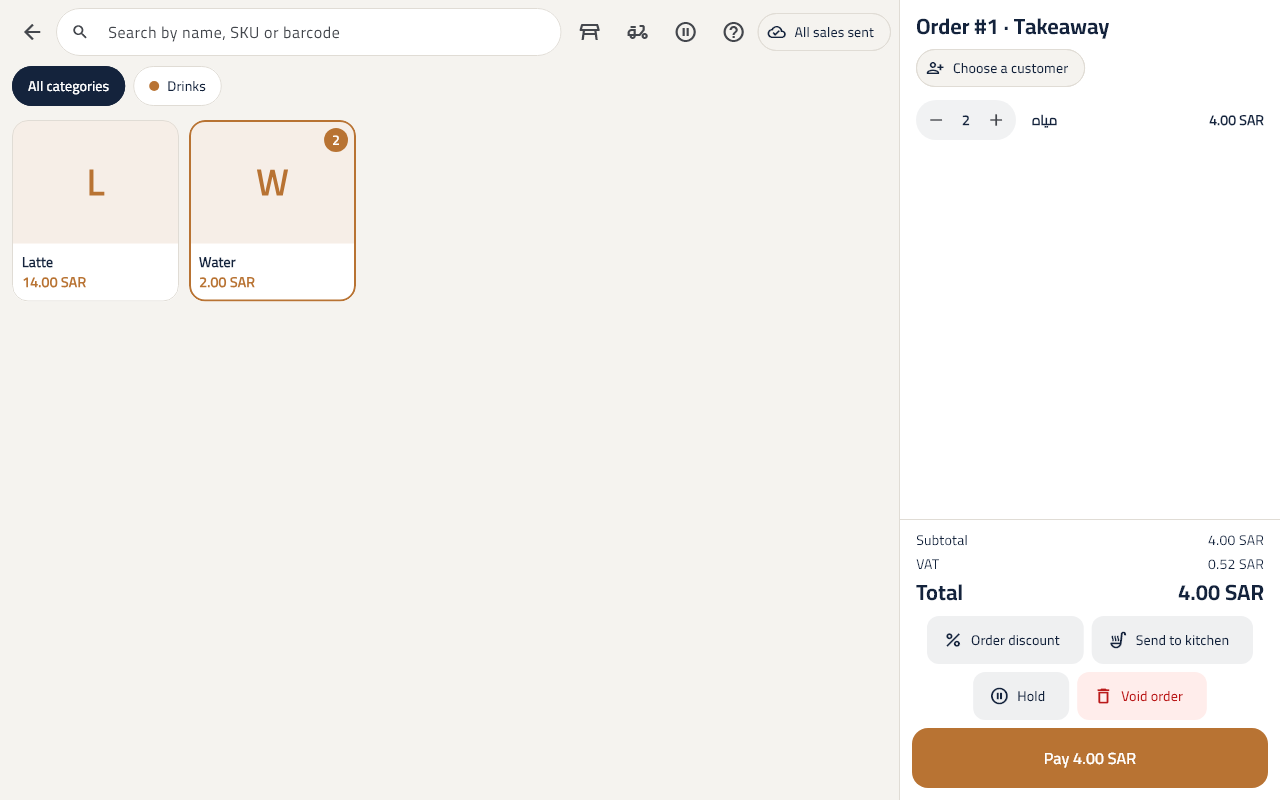
Sell an item and take payment
- Tap the item, scan its barcode, or type in Search by name, SKU or barcode.
- Tap the item again to add one more, or change the quantity on its line in the order.
- Tap Pay and choose Cash, Card or Split.
- For cash, type the Cash handed over; the Change shows. Tap Confirm payment.
A discount on an item or the order
- Tap the item's line and choose Item discount, or choose Order discount for the whole order.
- Type the percent or the amount. Zero removes the discount.
- A discount above your limit needs a manager's approval.
Hold an order and come back to it
- Tap Hold: the order is kept and a new one starts.
- To come back to it, tap Held and open orders and pick it.
Sell to a customer, or on account
- Choose the Customer on the order.
- When paying, choose On account to put the amount on their account, up to their credit limit.
The shop screen
- A till is a Restaurant (tiles and tables) or a Shop (barcode and keyboard), set in the settings under Selling screen.
- On the shop screen: F2 pays, F4 holds, Esc clears the search.
Void an order
- Tap Void order and choose the reason. What was already made is recorded as waste.
- A paid order is not voided; make a Return instead.